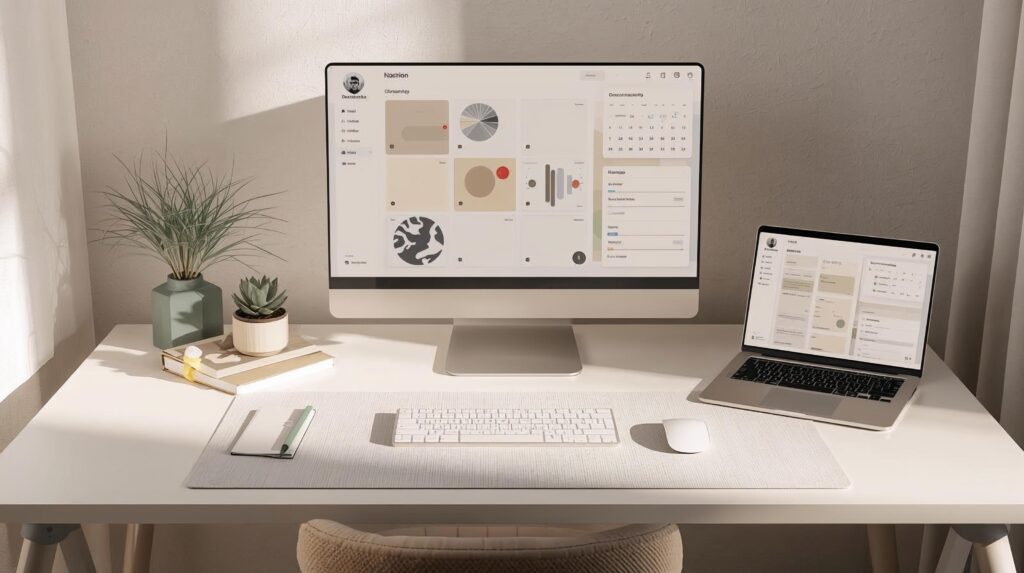
Working from home gives you flexibility but without a system, it can quickly turn into distraction, clutter, and mental overload.
A well-organized home office isn’t only about desks and chairs. It’s about having a clear workflow you can trust every day, if your posture or layout is off, start with this well-organized home office setup ↗.
That’s where Notion for home office organization stands out. This guide to notion for home office organization shows how to build a dashboard, templates, and workflow you can rely on daily.
Notion lets you centralize tasks, projects, notes, schedules, and personal workflows into one customizable workspace making it one of the most effective digital tools for building structure, clarity, and control.
“If you’re also building a modern workflow, pair Notion with an AI productivity stack ↗ that reduces repetitive planning and admin.”
Notion is an all-in-one workspace that combines:
- Notes
- Task management
- Databases
- Knowledge systems
Unlike rigid productivity apps, Notion adapts to your workflow whether you’re a remote employee, freelancer, or entrepreneur running a home office.
Why Notion works exceptionally well for home offices
- One tool can replace multiple apps
- Fully customizable layouts
- Scales from simple to advanced use
- Cloud-based (works across devices)
Core Notion Concepts You Must Understand First
If you understand the basics below, you’ll avoid 90% of beginner frustration.
Pages
Pages are the foundation of Notion. Everything: dashboards, notes, trackers, lives inside pages.
Blocks
Every piece of content is a block: text, checklists, headings, images, tables, embeds, and more. This block system is what makes Notion flexible.
Databases
Databases are what power serious organization. They can function as:
- Task managers
- Project trackers
- Knowledge bases
- Schedules
Views
One database can be displayed in multiple ways without duplicating anything:
- Table
- Board (Kanban)
- Calendar
- Timeline
- List
(Learn more about Table / Board / Calendar / Timeline views.) ↗
This gives you one source of truth with multiple perspectives (useful when your day changes fast). Notion’s own help docs explain how database views let you organize the same data in different layouts.
Notion for Home Office Organization: Your Home Office Command Center
Recommended Dashboard Sections
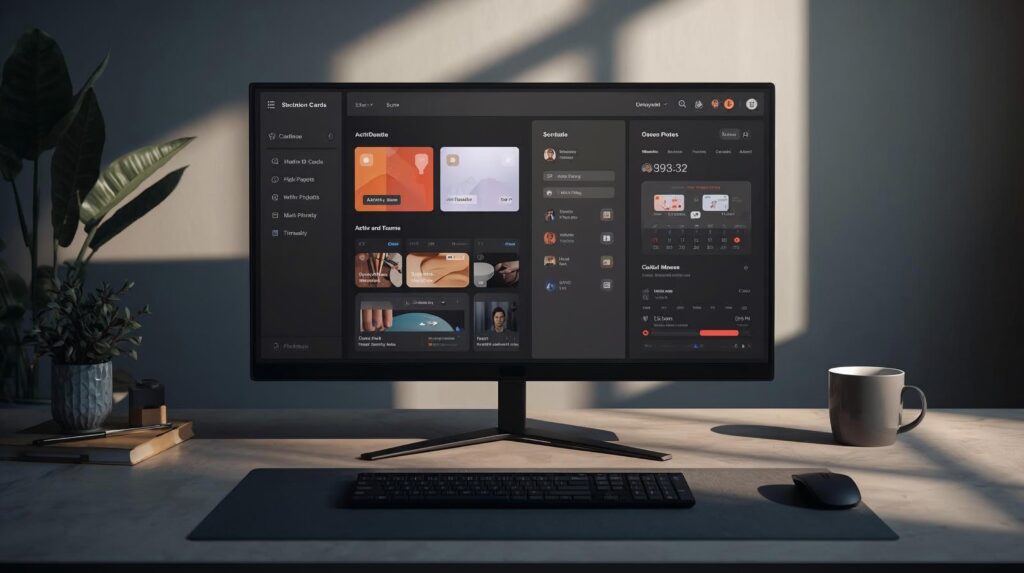
- Today’s Focus – your top 3 priorities only
- Active Projects – linked to your Projects database
- Task Inbox – quick capture (then sort later)
- Quick Notes – ideas, reminders, meeting notes
- Schedule Snapshot – calendar or timeline view
- Reference Links – tools, documents, logins, SOPs
This setup reduces context-switching and decision fatigue because your “what to do next” is decided before the day gets noisy.
Quick Setup (10–15 minutes)
- Create a new page: Home Office Dashboard
- Add a simple “Today’s Focus” section (3 checkboxes)
- Create a Tasks database (Table view)
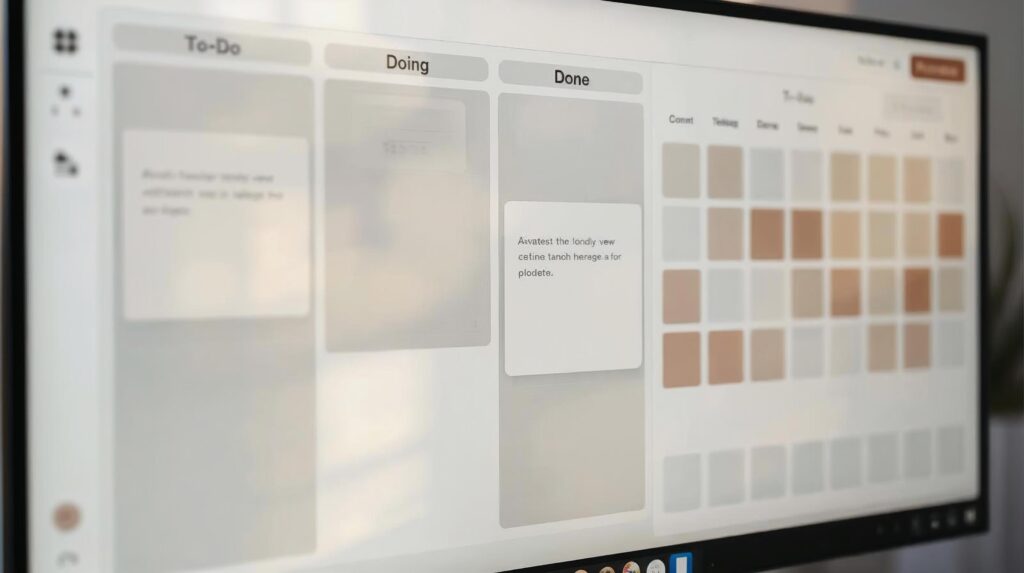
- Add a Board view for Tasks (To-Do / Doing / Done)
- Add a Calendar view for Tasks (for deadlines)
- Add a “Quick Notes” section for daily capture
You can refine later the goal is to start simple and keep it usable daily.
Essential Notion Templates for Home Office Organization
Below are the best Notion templates (systems) to build a calm, reliable workflow.
1) Task & Project Tracker
Create a Tasks database with:
- Status (To-Do / Doing / Done)
- Priority
- Due date
- Related project
- Optional: estimated effort (S / M / L)
Best views:
- Board (daily execution)
- Calendar (deadline visibility)
2) Work Schedule Manager
Ideal for remote or hybrid work. Track:
- Work hours
- Meetings
- Deep work blocks
- Deadlines
- Personal time blocks
This is especially useful when your calendar is fragmented your schedule becomes intentional, not reactive.
3) Notes & Knowledge Base
Store:
- Meeting notes
- SOPs
- Learning materials
- Ideas
Use tags and relations so notes don’t become a messy archive.
4) Home Admin Tracker (Often Overlooked)
Track:
- Bills
- Subscriptions
- Equipment purchases
- Warranty dates
- Renewal reminders
This prevents personal admin from bleeding into work focus a major source of “hidden stress.”
Advanced Notion Organization Tips (Power-User Level)
Once your basics are stable, these upgrades give you higher-level visibility without extra manual work.
Relations and rollups allow you to connect databases (like Tasks ↔ Projects) and then summarize information automatically (like progress, workload, deadlines). Notion’s Help Center describes relations as a way to connect items across tables, and rollups as a way to pull properties across those connections.
Example upgrades:
- Show “% complete” at the project level
- Roll up overdue tasks into a project warning
- See workload per project without counting manually
Automation Integrations
Notion can be integrated with tools like:
- Google Calendar
- Slack
- Email automations
This can reduce manual data entry.
Important note (accuracy): Automation capability depends heavily on third-party tools and your setup; Notion is improving over time, but automation is not universally “native and complete” across all workflows so treat automation as a bonus, not a requirement. (I cannot confirm your exact tool stack, so I’m keeping this general.)
Keyboard Shortcuts
Shortcuts reduce friction massively. Even learning a small set (create new block, move blocks, search, toggle headings) makes daily use smoother.
How Notion Fits Into a Physical Desk Setup
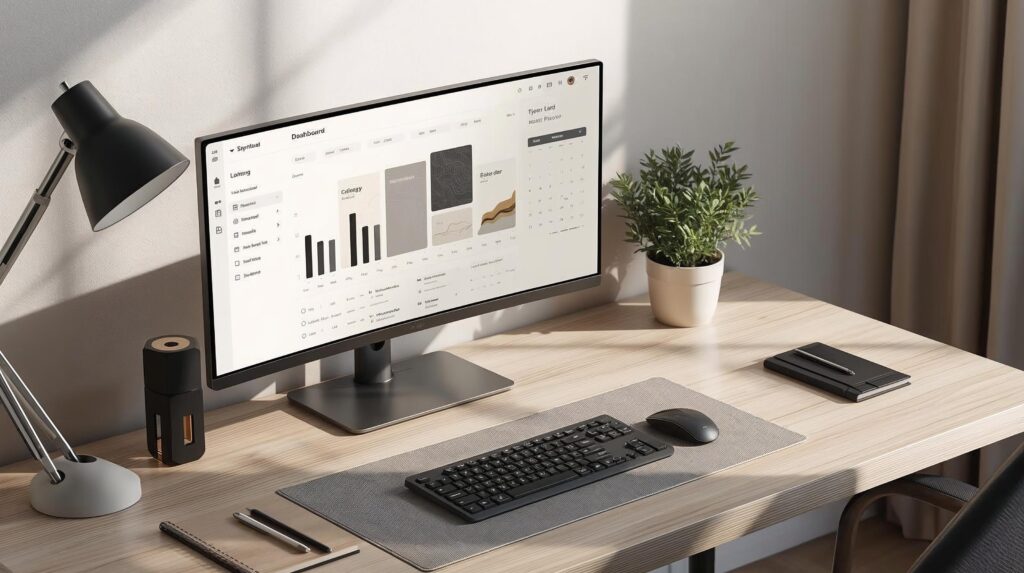
Digital organization supports physical clarity.
A clean desk + a clear Notion dashboard often equals:
- Clear priorities
- Reduced stress
- Faster decision-making
Many people keep Notion open on a secondary monitor or laptop stand, using it as a live command panel for the day.
If you’re upgrading comfort, see our ergonomic chair comparison ↗ before buying.
Common Mistakes to Avoid
- Overbuilding complex systems too early
- Creating too many databases with no clear purpose
- Copying templates without adapting them
- Treating Notion as a storage dump instead of a workflow tool
Start simple. Complexity should grow only when needed.
Notion Free vs Paid Plans (Quick Overview)
| Feature | Free | Paid |
|---|---|---|
| Pages & blocks | ✔ | ✔ |
| Basic databases | ✔ | ✔ |
| Advanced collaboration | ✖ | ✔ |
| File upload limits | Limited | Higher |
| Version history | Limited | Extended |
For most home office users, the free plan is usually sufficient. Paid plans become more valuable for teams, heavier collaboration, or larger file needs.
FAQs
Is Notion good for home office organization?
Yes, because it can combine tasks, notes, schedules, and systems in one place, and you can shape it around how you work (instead of forcing your work into rigid app rules).
What’s the fastest way to start without overbuilding?
Create only three things first:
- A Dashboard page
- A Tasks database
- A simple Projects database (optional at first)
Use it for a week, then improve based on what you actually needed.
How do I use Notion views effectively?
Use Board for execution, Calendar for deadlines, and Table for planning. Notion explains you can switch between multiple views of the same database depending on your needs.
What’s the best way to start Notion for home office organization?
Start with one dashboard + one task database, use it for a week, then improve only what you actually need.
Final Thoughts
Mastering Notion for home office organization isn’t about building the “perfect” system it’s about creating clarity, consistency, and control.
When combined with a well-designed desk setup and an ergonomic chair ↗ , Notion becomes the digital backbone that supports deep work, focus, and sustainable productivity.
If you invest time once to build a thoughtful system, it can pay dividends every single workday.