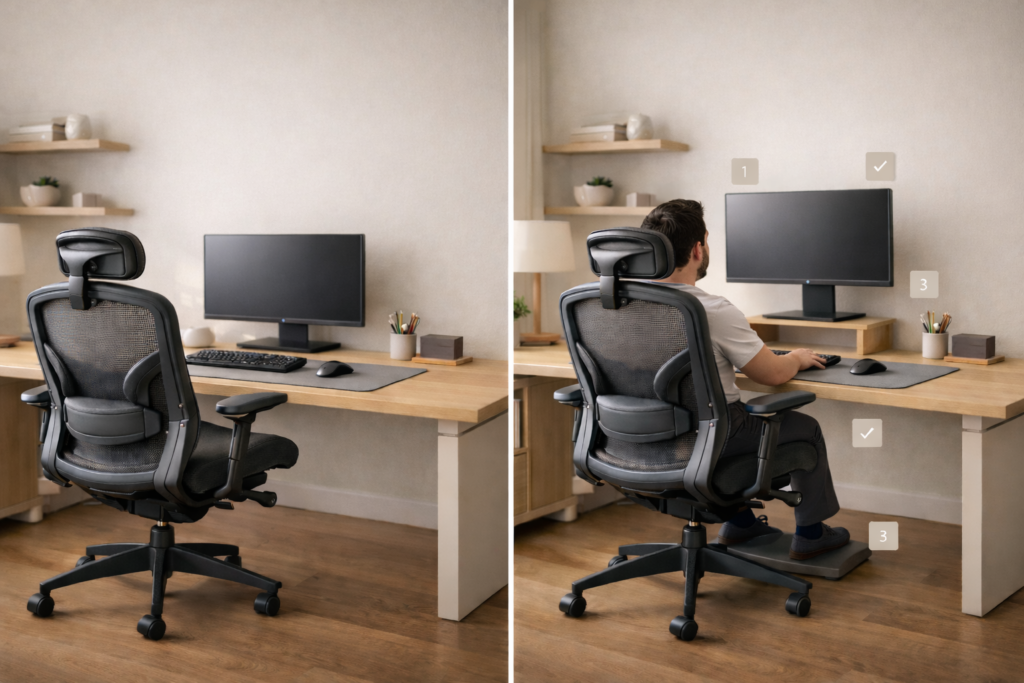
If you’re finishing the day with a stiff neck, aching back, or tired wrists, your setup probably needs a few small tweaks. This guide walks you through simple, proven desk adjustments for a more comfortable, neutral posture.
Desk setup ergonomics is one of the simplest ways to reduce neck, back, and wrist strain during long work sessions. We’ve all been there: after hours of deep work, you realize you’re hunched over your keyboard like a gargoyle. Your neck feels stiff, your back aches, and your wrists feel strained.
At Desk Setup Hub, we believe a beautiful setup is useless if it’s hurting you. Ergonomics isn’t just a corporate buzzword it’s the science of fitting the workspace to the user. With a few precise adjustments, you can reduce fatigue and stay focused on what matters most.
If you notice any of these, your setup likely needs a tweak:
- You lean forward to read the screen.
- Your shoulders feel “raised” or tense while typing.
- Your wrists bend up or down on the keyboard.
- You twist your neck to see a second monitor.
- Your feet don’t rest comfortably on the floor.
- You feel pressure behind your thighs from the seat edge.
This is what we want you to avoid: a setup that forces your body into unnatural, strained positions.
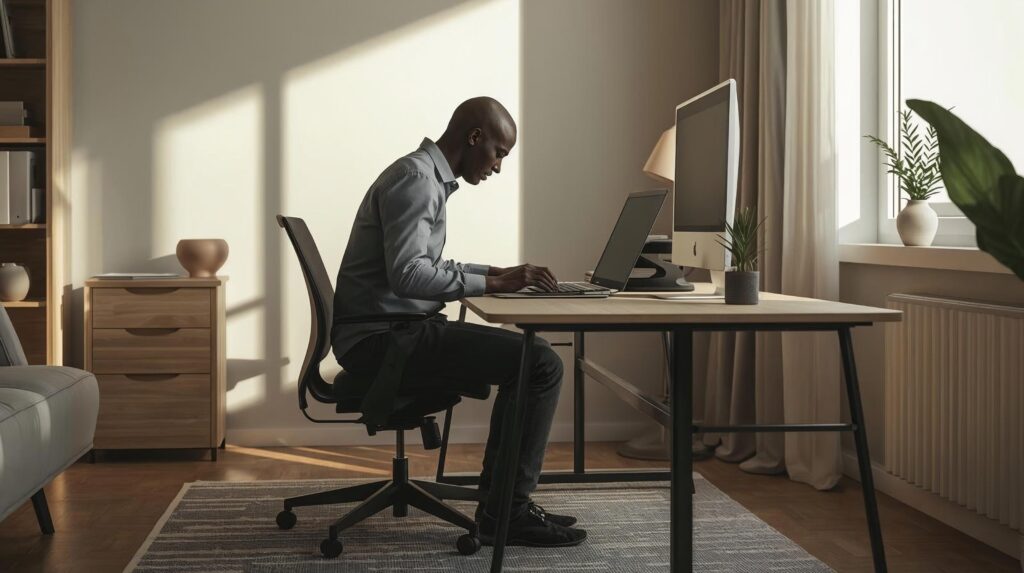
Figure 1: The common “hunch.” This posture puts immense strain on your neck, back, and wrists.
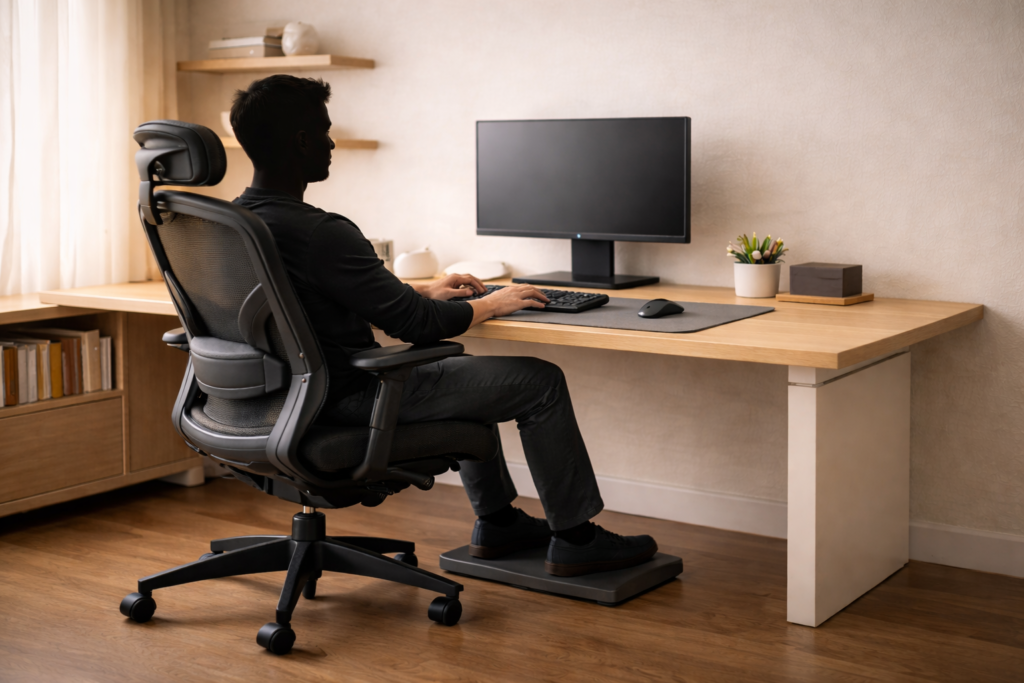
The goal: a relaxed, “neutral” posture where joints aren’t held at extreme angles for long periods. You should feel supported, not locked into position.
Below is exactly how to adjust your desk setup for peak ergonomic performance and avoid the posture shown above.
Step 1: Desk Setup Ergonomics Starts with Chair Height and Body Alignment
Ergonomics starts with your foundation. If your chair is poorly adjusted, the rest of your setup will struggle. The goal is to create comfortable alignment often close to 90-degree angles so your body stays supported and relaxed.
Feet and Leg Position:
- Feet: Your feet should rest flat on the floor. If they don’t reach, use a footrest. Avoid crossing your legs, as it can restrict blood flow.
- Knees and thighs: Adjust chair height so your knees are around 90 degrees, with thighs roughly parallel to the floor.
For an official posture reference for desk users, see the HSE DSE good posture guidance ↗.
Lower Back Support (Lumbar):
- Lumbar support: The chair’s curve should support the small of your back. If your chair lacks support, a small lumbar pillow can help a lot.
If you’re dealing with persistent lower back discomfort, start with better lumbar support and consider one of these ergonomic chairs for lower back pain ↗.
Arm and Shoulder Position:
- Elbows: When your hands are on the keyboard, keep elbows tucked close to your body at about 90–100 degrees.
- Shoulders: Your shoulders should feel relaxed not shrugged up near your ears.
If your current chair can’t hold these adjustments, upgrading to one of the best ergonomic chairs for home use ↗, can make a big difference.
This is what a correct, neutral posture looks like:
Step 2: Monitor Placement for Desk Setup Ergonomics (Protect Your Neck and Eyes):
“Tech neck” happens when you look down at a screen for too long. Proper monitor placement is one of the biggest wins in desk setup ergonomics because it directly affects your neck position and eye fatigue.
Eye-Level Screen Height:
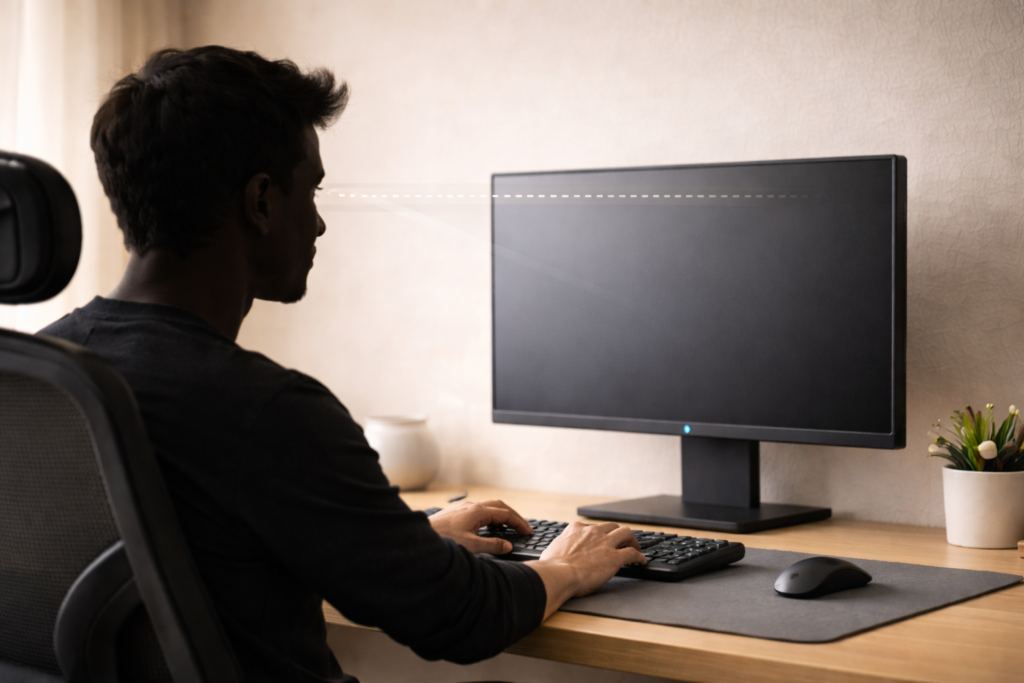
- Eye level: The top third of your monitor should sit at (or very close to) eye level when you’re sitting upright. This helps keep your neck neutral—no constant head tilt up or down.
An easy way to get the top third of the screen to eye level is using a monitor stand or one of the best monitor arms for home office setups ↗.
If you work on a laptop, raise it to eye level first these laptop stands for better posture ↗, make that adjustment much easier.
Screen Distance:
- Arm’s length rule: Sit about an arm’s length from the screen. If you lean forward to read, increase font size rather than moving your chair closer.
Center the Main Screen:
- Centering: Keep your primary monitor directly in front of you to avoid repeated neck rotation.
For a full workstation checklist you can compare against, use the OSHA computer workstation evaluation checklist ↗.
Step 3: Keyboard and Mouse Placement (Stop Reaching Forward):
Your mouse and keyboard should come to you, you shouldn’t reach for them. Good desk setup ergonomics keeps your arms and wrists in a comfortable, neutral position.
Keep Everything in the “Easy Reach” Zone:
- Reach zone: Place the keyboard and mouse close enough that you can use both without extending your arms or leaning forward.
Keep Wrists Neutral:
- Wrist neutrality: Wrists should stay straight not bent up or down.
- Palm rest note: A palm rest can help maintain a neutral position, but avoid pressing hard on the underside of your wrists.
Avoid Excess Keyboard Tilt:
- Keyboard tilt: Raising the back feet of your keyboard can increase wrist extension for some people. Keeping the keyboard flatter is often better for long-term comfort.
Quick Desk Setup Ergonomics Checklist
| Adjustment | Ideal Position | Benefit |
|---|---|---|
| Monitor Height | Top 1/3 near eye level | Reduces neck strain |
| Elbows | ~90° angle, close to sides | Prevents shoulder tension |
| Feet | Flat on floor or footrest | Improves circulation/lower back comfort |
| Mouse/Keyboard | Close enough to keep elbows bent | Prevents reaching/strain |
Step 4: Don’t Forget the 20-20-20 Rule (Movement Matters):
No matter how good your desk setup ergonomics is, the human body wasn’t designed to stay still for eight hours. Movement is key.
- Every 20 minutes: Look at something 20 feet away for 20 seconds to reduce eye strain.
- Micro breaks: Stand up and stretch every 30–60 minutes. A standing desk can help but remember: the best posture is your next posture.
To stay consistent with breaks and movement, these productivity tools for your desk setup ↗, can help you build better work habits.
FAQ (Desk Setup Ergonomics):
How high should my monitor be?
A reliable starting point is top of the screen near eye level, with the screen about an arm’s length away. Adjust slightly based on comfort and vision needs.
Do I need a footrest?
You need support. If your feet don’t rest comfortably on the floor after setting your chair height for proper arm position, a footrest is a simple fix.
Is sitting up straight all day bad?
Holding any single posture all day can be tiring. Aim for supported, neutral posture and add movement throughout the day.
What if my desk is too high and I can’t change it?
Raise the chair so your shoulders relax while typing, then use a footrest to support your feet. This is one of the most common and effective fixed-desk solutions.
Final Thoughts:
Improving desk setup ergonomics doesn’t require a $2,000 chair. It’s about the geometry of your body in relation to your tools. Start with these simple adjustments today and notice how much more energy and focus you have by the end of the week.
What’s the one part of your current setup that causes you the most pain? Let us know in the comments, and we’ll help you troubleshoot it.