Is your monitor setup helping you get work done or quietly slowing you down?
If you’re constantly Alt-Tabbing, losing your cursor, leaning forward to read text, or feeling eye fatigue by mid-day, your screen layout is likely the bottleneck. This guide shows you the best monitor setup for productivity in 2026 with clear layout options (single, dual, ultrawide) and a step-by-step setup you can finish in under 30 minutes.
| Your goal | Best monitor layout | Must-have upgrades | Ideal for |
|---|---|---|---|
| Deep focus, fewer distractions | Single monitor | Monitor arm/stand + good lighting | Writing, studying, admin |
| Fast multitasking | Dual monitors | Matching displays + monitor arms | Ops, support, research |
| Clean multitasking without a second screen | Ultrawide | Ultrawide + window snapping | Analysts, devs, creators |
| Laptop-first workflow | Laptop + external monitor | Laptop stand + external keyboard/mouse | Hybrid work, travel |
How we chose these setups: we optimized for (1) comfort over long sessions, (2) fewer interruptions, (3) cleaner task switching, and (4) upgrades that create measurable workflow improvement not just aesthetics.
The productivity checklist (do these first)
If you do nothing else, do these 7 items in order:
- Center your main screen in front of you (reduces neck twisting).
- Set monitor height: top of screen at or slightly below eye level (for many users).
- Set viewing distance: start around an arm’s length and adjust.
- Reduce glare/reflections (window angle + lighting).
- Increase text scaling so you don’t lean forward.
- Use two window zones: “Primary” + “Reference” (stop hunting windows).
- Do basic cable control so your desk stays visually calm.
The 5 ergonomics rules that make any setup productive
These guidelines aren’t about perfection. They remove the small frictions that quietly drain focus.
1) Monitor height and gaze angle
A common guideline is the top of the monitor at or slightly below eye level. OSHA’s computer workstation guidance also notes the center of the monitor is commonly positioned 15–20 degrees below horizontal eye level.
Practical check: sit tall, relax shoulders, look straight ahead your gaze should naturally drop slightly to your main working area.
2) Viewing distance
A practical starting target is about an arm’s length away.
Oregon OSHA’s workstation guidance also describes an arm’s length distance and gives an example range (16–29 inches).
If you keep leaning in: increase text size, move the monitor slightly closer, or both.
3) Glare control (the underrated productivity booster)
Glare and reflections can push you into awkward posture and eye strain. OSHA workstation guidance emphasizes arranging screens to reduce glare/reflections.
Fast fixes:
- Don’t place the screen directly facing a bright window
- Use blinds/curtains during peak daylight
- Use a desk lamp to light the desk, not the screen
If you work early mornings or late evenings, good lighting matters as much as screen positioning. A quality desk lamp (or light bar) helps balance your workspace lighting so you’re not cranking brightness and fighting reflections. See our top picks for desk lamps that reduce eye strain ↗.
4) Text size and scaling (the “lean forward” fix)
If you squint or lean forward, increase:
- OS scaling (Windows/Mac), and/or
- in-app zoom (browser/docs/IDE)
This is often a bigger posture upgrade than buying new gear.
5) Breaks and micro-movements
Even with good ergonomics, staying motionless for long periods reduces comfort and focus. Build short reset moments (stand, look away, shoulders back). (This is general guidance; exact break protocols vary by employer/health guidance.)
Choose your layout: single vs dual vs ultrawide vs laptop + monitor
Single monitor (best for deep focus)
Why it works: fewer visual targets → fewer attention jumps.
Best if you: write, study, do admin, or want to reduce multitasking.
Simple workflow:
- Fullscreen your primary task
- Keep one “reference stack” (tabs or a side panel) instead of splitting into many windows
Dual monitors (best for heavy multitasking)
Why it works: keep reference apps visible while staying productive on your primary task.
Best if you: ops, support, research, logistics, data work.
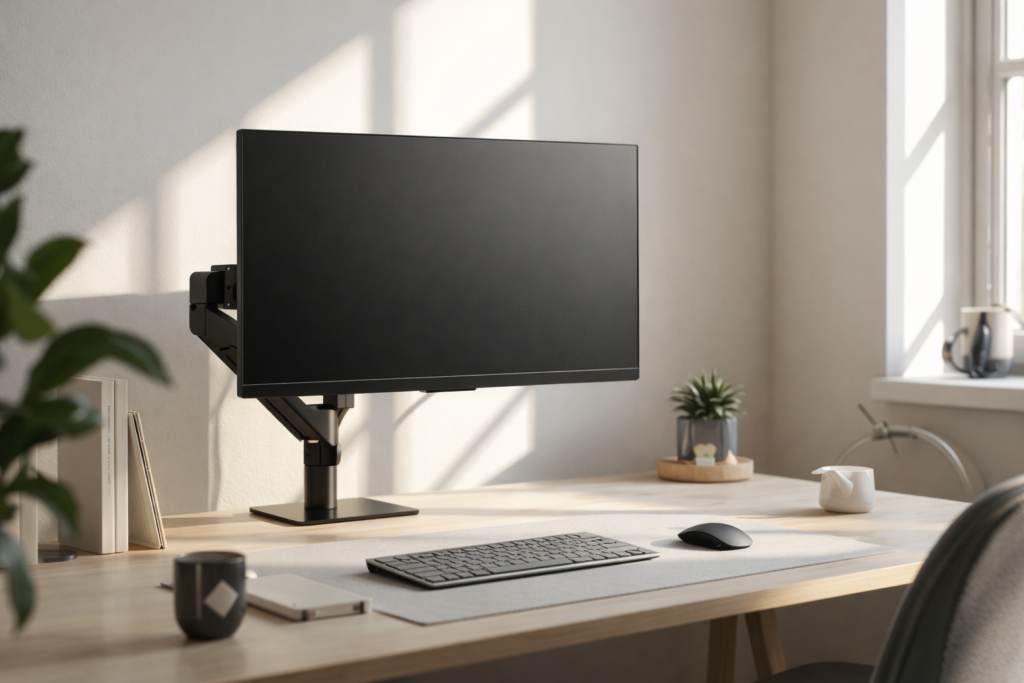
Key rule: one monitor should be the main (centered) and the other a support (slightly angled). If you use both equally, sit centered between them to reduce twisting.
Ultrawide (clean multitasking without two screens)
Why it works: large canvas, fewer bezels, easy window tiling.
Best if you: analysis, coding, timelines, creative work.
Avoid the common mistake: don’t treat an ultrawide as one giant window. Use 2–3 consistent zones:
- left = reference
- center = primary task
- right = comms/notes
Laptop + external monitor (hybrid)
This is the most common “almost good” setup because many people keep the laptop screen too low and end up looking down.
Best practice: elevate the laptop (stand) and use:
- external keyboard + mouse
- the external monitor as your main screen
If you’re using a laptop daily, elevating it is the simplest way to stop looking down and tighten your posture. Pair a stand with an external keyboard/mouse, and your external monitor becomes the main screen without strain. Here are our recommended options: Best Laptop Stands for Home Office ↗.
Step-by-step: set up your monitor like a pro (in the right order)
Step 1: Set chair + desk height first
Before touching the monitor:
- feet supported
- shoulders relaxed
- elbows close to the body
This prevents you from “fixing posture” by raising the monitor too high.
Step 2: Put the main screen directly in front of you
Center your primary monitor to reduce neck and trunk twisting.
Step 3: Set monitor height
Aim for the top of screen at or slightly below eye level as a common baseline.
If you wear bifocals/trifocals/progressive lenses, you may want the display lower to avoid tilting your head back.
How to achieve it:
- Monitor arm: easiest to fine-tune
- Monitor stand: stable and simple
- Riser: fine if it doesn’t wobble
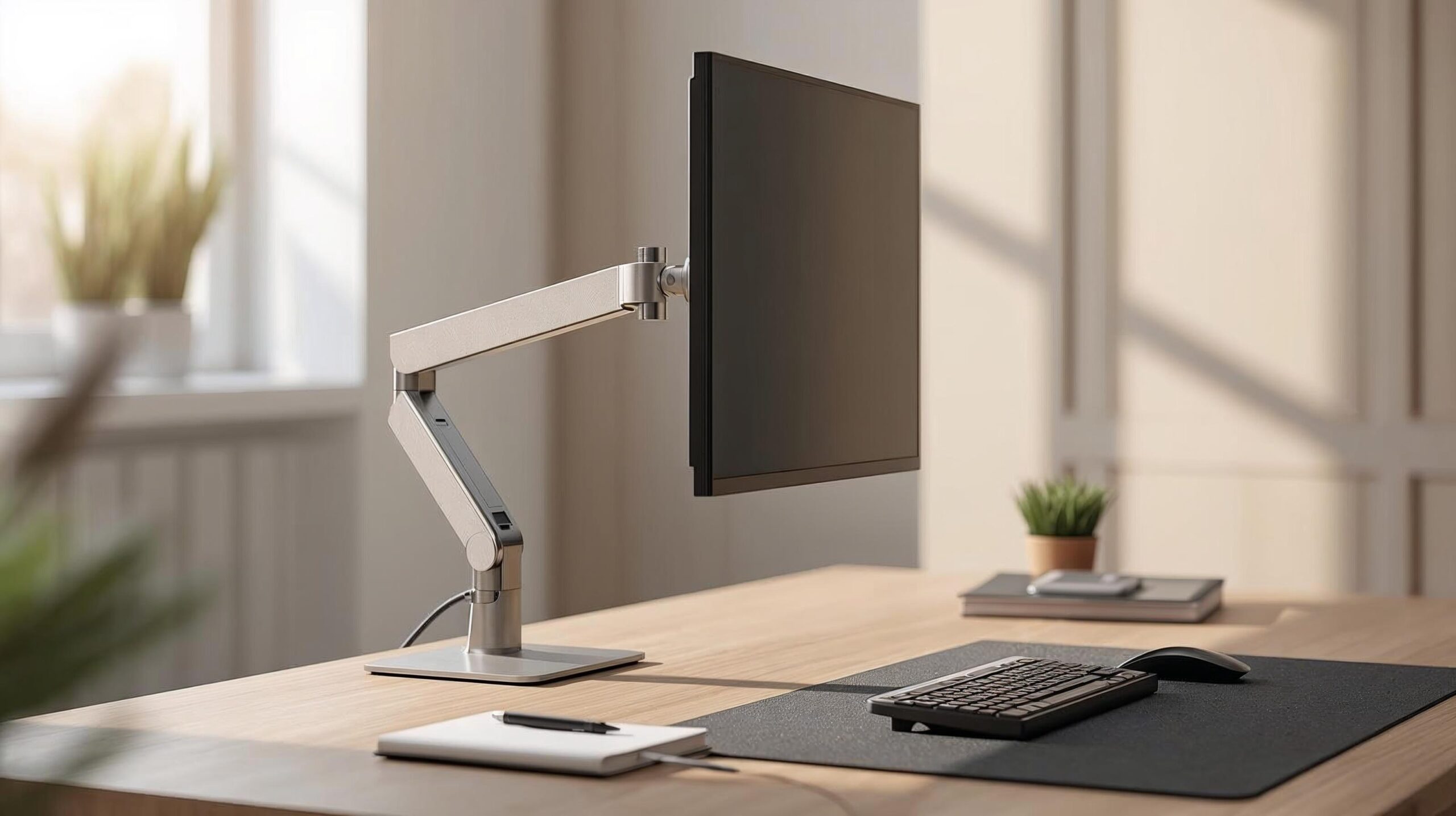
If you want the fastest upgrade for comfort and posture, a monitor arm makes it easy to fine-tune height, distance, and screen centering in seconds—especially if you switch between sitting and standing or share a desk. Here’s our guide to the best monitor arms for home office setups ↗.
Step 4: Set viewing distance
Start at about an arm’s length and adjust so you can read without leaning.
Step 5: Dial in tilt and reduce glare
- Tilt the screen to match your natural gaze angle
- Move lamps/windows to reduce reflections
- Avoid setting brightness far above room lighting (it often increases discomfort)
Step 6: Create productivity zones (stop hunting windows)
Use a simple rule:
- Primary zone: the window you work in
- Reference zone: docs/calendar/dashboard/notes
- Communication zone: chat/email (kept out of the center when possible)
Step 7: Clean up cables (less visual noise = better focus)
A messy desk is distracting when you’re mentally loaded.
Starter kit:
- under-desk tray (power strip + adapters)
- Velcro ties (reusable)
- a simple raceway along the back edge
A tidy desk isn’t just about aesthetics it reduces visual noise and makes your setup easier to maintain. If you want a clean, professional finish (under-desk tray, raceways, Velcro ties, and routing tips), follow our step-by-step guide: Cable Management for a Clean Desk Setup ↗.
Accessories that improve productivity (and what to skip)
Monitor arm vs monitor stand
- Monitor arm: best for frequent adjustments and reclaiming desk space
- Monitor stand: best value if you rarely move the screen
Lighting (desk lamp or light bar)
Better lighting helps reduce squinting and glare struggles especially in the evening.
External keyboard + mouse (laptop users)
This enables correct screen positioning without sacrificing input comfort.
Docking station / USB hub
If you plug/unplug daily, a dock reduces friction and cable clutter.
What to skip (usually):
- unstable risers that wobble
- adding more screens without a workflow plan
Best monitor setups by workflow (copy these)
Writers / students
- Layout: single monitor
- Zones: fullscreen writing + small notes panel
- Upgrades: desk lamp + stable stand
Analysts / finance
- Layout: ultrawide or dual
- Zones: spreadsheet center, dashboard left, notes right
- Upgrades: monitor arms + consistent window tiling
Developers
- Layout: ultrawide or dual
- Zones: IDE center, docs left, terminal right
- Upgrades: tuned text scaling for long sessions
Designers / editors
- Layout: large 27–32″ or ultrawide
- Zones: canvas primary, tools side, preview secondary
- Upgrades: glare control + consistent lighting
Customer support / operations
- Layout: dual monitors
- Zones: tickets/CRM main, knowledge base + chat support
- Upgrades: matching heights + arms for alignment
Troubleshooting: quick fixes
“My neck hurts.”
- Check height: top of screen at/near eye level baseline, and ensure your main screen is centered.
“I keep leaning forward.”
- Increase text scaling + bring the monitor slightly closer (starting at arm’s length).
“I feel eye fatigue.”
- Reduce glare/reflections and balance screen brightness with room lighting.
“Dual monitors make me turn my head too much.”
- Angle screens inward in a slight “V”, keep them close together, and sit centered if both are used equally.
FAQs
What’s the ideal monitor height for productivity?
A common guideline is the top of the screen at or slightly below eye level. OSHA also notes the center of the screen is often positioned 15–20° below horizontal eye level.
How far should my monitor be from my eyes?
Start at about an arm’s length and adjust for comfort and text size. Oregon OSHA guidance also describes an arm’s length distance (example range 16–29 inches).
Is one monitor better than two for productivity?
One monitor often supports deep focus; dual monitors can speed up reference-heavy work. Choose based on your daily workflow and switching frequency.
Is an ultrawide better than dual monitors?
Ultrawide can feel cleaner (no bezel gap) and supports consistent “zones.” Dual monitors can be more flexible. The best choice depends on your tasks and comfort.
Do I need a monitor arm?
Not required, but it’s one of the easiest ways to dial in correct height, distance, and centering especially for dual monitors.
Sources & References
- OSHA Monitors – Computer Workstations: Monitors ↗
- HSE Good posture (DSE) – Good posture when using display screen equipment ↗
- CCOHS Monitor positioning – Office Ergonomics: Positioning the Monitor ↗
- Oregon OSHA PDF – Evaluating your computer workspace ↗