
Best productivity software for home office setups helps you stay organized, protect focus, and keep projects moving especially when distractions, clutter, and constant context switching are part of remote work. In this guide, you’ll find 10 Best productivity software for home office plus a simple way to build the right stack without overcomplicating your workflow.
Quick note: Many of these tools offer free plans and optional paid upgrades. Features can vary by plan and region, so always confirm the latest details on the official product pages.
If you’re building a simple stack, start with the best productivity software for home office work that solves your biggest bottleneck first (tasks, focus, time tracking, or communication).
Why productivity software matters in a home office
Good tools don’t replace good habits but they remove friction. The best home-office software typically helps with:
- Task clarity: know what to do next (and what not to do)
- Time awareness: understand where your day actually goes
- Focus protection: reduce interruptions and context switching
- Collaboration: fewer meetings, better alignment
- Repeatable workflows: templates, automations, and routines
Productivity isn’t only about apps your environment matters too. A few ergonomic tweaks (monitor height, chair setup, and keyboard position) can reduce fatigue and help you stay focused longer. Use this quick guide: Adjust your Desk Setup for Better Ergonomics ↗.
Quick comparison: best productivity software for home office
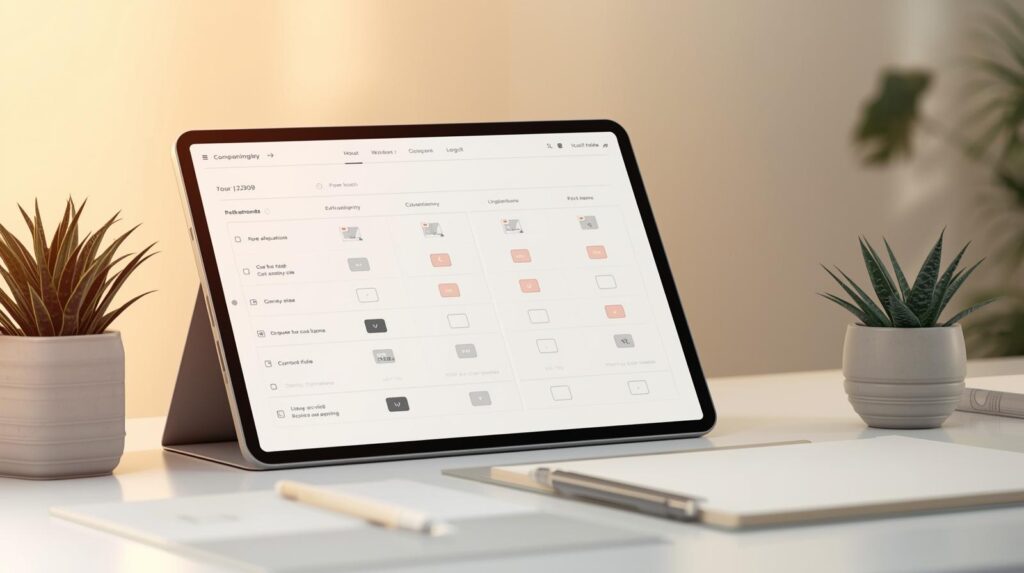
| Tool | Best for | What it improves fastest |
|---|---|---|
| Notion | All-in-one workspace | Notes + tasks + docs in one system |
| Todoist | Task management | Quick capture + daily execution |
| Trello | Visual project tracking | Kanban planning + simple teamwork |
| Slack | Team communication | Organized discussions + quick huddles |
| Grammarly | Writing quality | Clearer emails, docs, and messages |
| Calendly | Scheduling | Eliminates back-and-forth booking |
| Forest | Phone focus | Staying off your phone while working |
| RescueTime | Time tracking | Visibility + distraction control |
| Evernote | Note capture + search | Save & retrieve knowledge fast |
| Loom | Async communication | Explain faster than meetings |
Best Productivity Tools
1. Notion – Best All In One Workspace
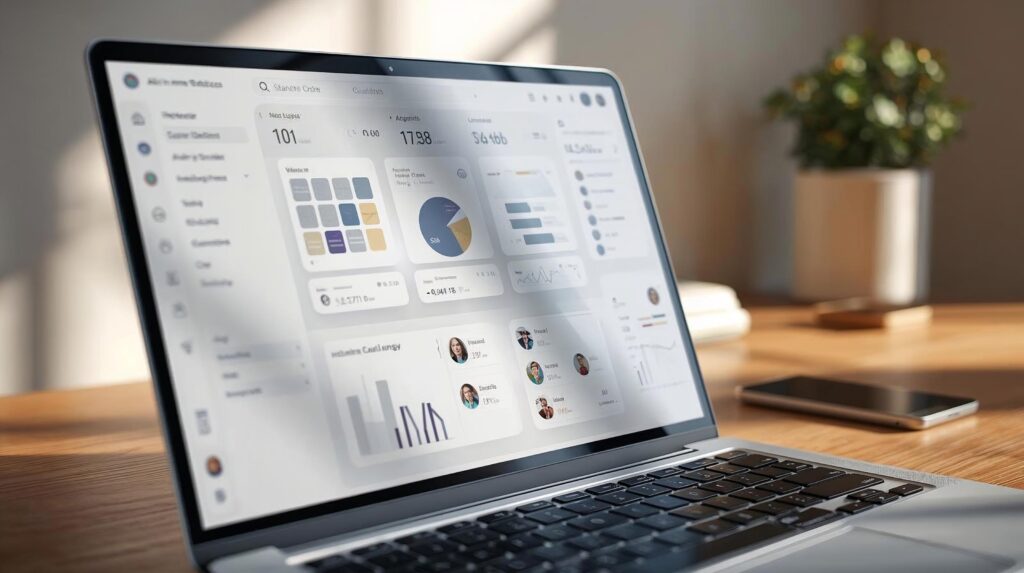
Notion is built to consolidate notes, docs, project tracking, and team knowledge into one flexible system. Notion also positions itself as an AI workspace with capabilities like AI notes and workflow support.
If you’re new to Notion, start with one simple workspace: a task list, a projects database, and a notes hub. I’ve shared a step-by-step setup here: Mastering Notion for Home Office Organization ↗. It’s the fastest way to avoid overbuilding and still get a system you’ll actually use.
Key strengths
- Real-time collaboration on shared pages/databases
- Database templates (useful for repeatable systems)
- Notion AI positioning (notes/search/workflows)
Best for: freelancers, creators, and teams who want fewer tools and one “home base.”
Pro tip: Start with one dashboard (Tasks + Projects + Notes). Don’t build a giant system on day one.
2. Todoist – Best simple task management
Todoist is a streamlined to-do app designed for fast capture and reliable execution. It supports natural-language input and offers a broad integration ecosystem (80+ integrations referenced on its features page).
Key strengths
- Natural-language task entry
- 80+ integrations
- Productivity tracking via Karma
Best for: people who want “set it and trust it” task management.
Pro tip: Use a daily triage rule: Top 3 tasks + one admin block.
3. Trello – Best Visual Project Management
Trello is widely used for Kanban-style workflow tracking. It supports automation features (including Trello automation / Butler) and a large ecosystem of Power-Ups.
Key strengths
- Power-Ups to extend boards
- Automation (rules/buttons/commands)
- Helpful automation guides for setup
Best for: visual thinkers managing projects, content calendars, or lightweight team workflows.
Pro tip: Use 4 columns only: Backlog → Doing → Waiting → Done.
4. Slack – Best Team Communication (and quick huddles)
Slack is designed for organized team discussions in channels and direct messages, plus real-time “huddles” with audio/video and screen sharing.
Key strengths
- Channels to organize work and share files
- Huddles for quick audio/video + screen sharing
- Large integrations directory
Best for: remote teams that need searchable, structured communication.
Pro tip: Create one “Decision Log” channel so approvals and choices don’t disappear.
5. Grammarly – Best Writing Assistant
Grammarly supports writing improvement through tools like tone checking and plagiarism checking (feature availability can vary by plan). Grammarly also states its browser extension works in “1 million+ apps and programs.”
Key strengths
- Tone detection/tone suggestions
- Plagiarism checker (Grammarly describes this feature; check plan availability)
- Browser extension works in 1M+ apps/programs
Best for: anyone writing emails, reports, proposals, or content daily.
Pro tip: Use tone suggestions specifically for client emails and performance reviews.
6. Calendly – Best Scheduling Tool
Calendly is built to reduce scheduling back-and-forth by letting others book from your availability, with scheduling rules and automation such as reminders/follow-ups described on its scheduling pages.
Key strengths
- Availability settings and scheduling rules
- Scheduling automation (reminders/follow-ups referenced)
Best for: consultants, managers, recruiters, and anyone booking meetings frequently.
Pro tip: Offer just 2 meeting types at first (15-min + 30-min). Keep it simple.
7. Forest – Best Focus Tool for Phone Distraction
Forest gamifies focus by growing a virtual tree while you stay off your phone, and it partners with a tree-planting organization (Trees for the Future) for planting real trees.

Key strengths
- Focus timer concept and “plant real trees” partnership
- Allow-list / app blocking approach referenced on store listing
Best for: anyone who loses time to phone notifications during work blocks.
Pro tip: Pair Forest with a “Deep Work” ritual: headphones + single task + 25/50 minutes.
8. RescueTime — Best Time Tracking and Productivity Analytics
RescueTime tracks time automatically across websites/apps and offers goals, alerts, and distraction blocking (as described on its site).
Key strengths
- Automatic tracking across websites/apps
- Goals, alerts, and blocking distractions
Best for: people who want data-driven insight and accountability.
Pro tip: Review your weekly report and choose one distraction category to reduce next week.
9. Evernote — Best Note Capture & Powerful Search
Evernote supports web clipping and strong search across formats like PDFs, images, and scanned documents (feature availability can depend on plan).
Key strengths
- Web Clipper for saving pages/articles/PDFs
- Search across PDFs, docs, images, and scanned documents (plans referenced)
Best for: knowledge workers building a searchable personal library.
Pro tip: Use a simple tagging system: Project / Topic / Status (keep tags under 20 total).
10. Loom — Best Async Video Communication
Loom records your screen and shares videos via a link, with editing options and transcription support noted in Loom’s plan pages and documentation.
Key strengths
- Instant share links and quick edits
- Transcriptions in 50+ languages (stated in Loom pricing/support docs)
Best for: distributed teams, client walkthroughs, feedback, training, and reducing meetings.
Pro tip: Keep Looms under 3 minutes unless it’s a tutorial.
How to choose the right productivity software
Step 1: Identify your biggest bottleneck
- Too many tasks / missed deadlines → Todoist
- Projects feel chaotic → Trello (or Notion projects)
- Meetings and messages consume your day → Slack + Loom
- You don’t know where time goes → RescueTime
- You write all day → Grammarly
- You lose notes and files → Notion or Evernote
- Phone distraction → Forest
- Scheduling ping-pong → Calendly
The best productivity software for home office setups is the one that removes friction in the exact part of your workflow that’s slowing you down right now.
Step 2: Build a “minimum effective stack” (don’t overtool)
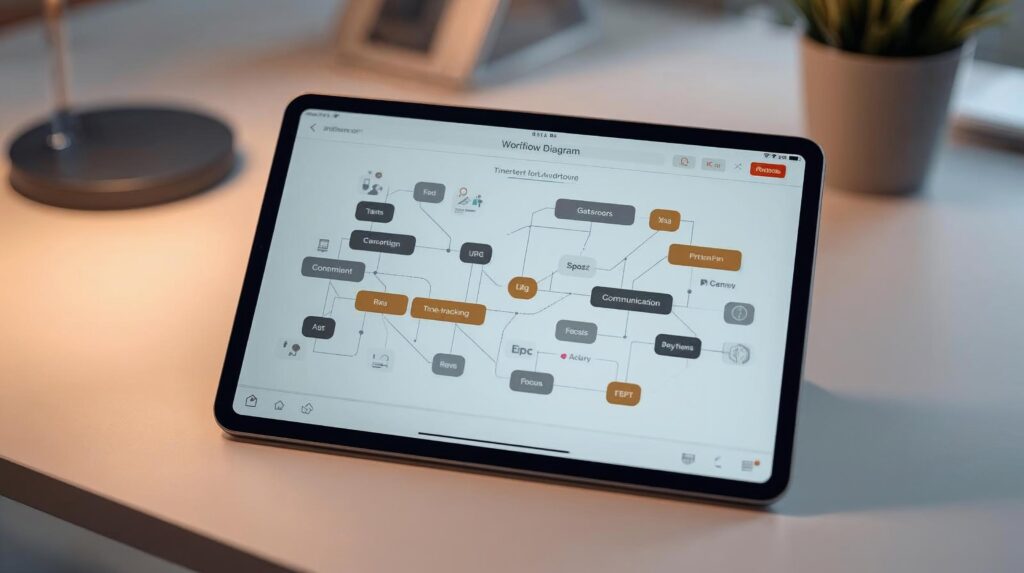
Pick one from each category:
- Tasks: Todoist or Notion
- Projects (optional): Trello or Notion
- Communication (teams): Slack
- Async explanations: Loom
- Time insight: RescueTime
- Focus (optional): Forest
- Writing quality: Grammarly
- Scheduling: Calendly
If you want a more advanced setup (without adding unnecessary tools), you can build a small “AI-assisted” workflow for planning, writing, and execution. Here’s a complete breakdown of a practical stack: Best Productivity Stack for 2026 ↗.
Step 3: Validate ROI (simple calculation)
If a tool costs $X/month and saves Y hours/month, your “time value” is:
$X ÷ Y = cost per hour saved
Example: $30/month saving 5 hours/month → 30 ÷ 5 = $6/hour saved.
Common mistakes to avoid
- Tool hopping: switching constantly prevents mastery.
- Over-automation: automating chaos just makes chaos faster.
- Too many “inboxes”: tasks split across apps = nothing feels done.
- No weekly review: without reviews, every system decays.
Productivity best practices (simple, sustainable)
- Daily: choose Top 3 tasks, block 1–2 deep work sessions
- Weekly: review projects, clean up backlog, plan the next week
- Communication: batch messages 2–3 times/day; use Loom for explanations
- Focus: disable non-essential notifications during deep work
Visual clutter quietly increases mental load. Cleaning up loose cables and power adapters makes your desk feel “finished,” which helps you start work faster and stay consistent. Here’s a practical guide: Best Cable Management for Clean Desk ↗.
FAQs
What is the best productivity software for home office work if I want a simple setup?
Start with one task manager and one notes/workspace tool. The best productivity software for home office beginners is usually the combination you’ll use consistently for 30 days without switching.
What is the best all-in-one productivity app for home office?
If you want notes + tasks + knowledge in one place, Notion is a common starting point because it supports collaborative pages and databases and has templates.
What’s better: Todoist or Trello?
Todoist is typically best for personal task execution; Trello is often better when you want a visual project board and lightweight collaboration/automation.
How can I reduce meetings while working remotely?
Use Slack for structured updates and Loom for explanations/demos. Loom supports link-based sharing and provides transcription capabilities per its plan documentation.
Final thoughts
The best productivity software for a home office is the one you’ll actually use consistently. Start small, solve one bottleneck at a time, and build a system that’s sustainable not complicated.
The best productivity software for home office success is the set of tools you’ll actually use consistently start small and improve one bottleneck at a time.
Sources & References
- Notion – (official product/features) ↗.
- Todoist – (official features/integrations) ↗.
- Trello – (official automation / power-ups) ↗.
- Ergonomics workstation guidance – (OSHA eTool) ↗.