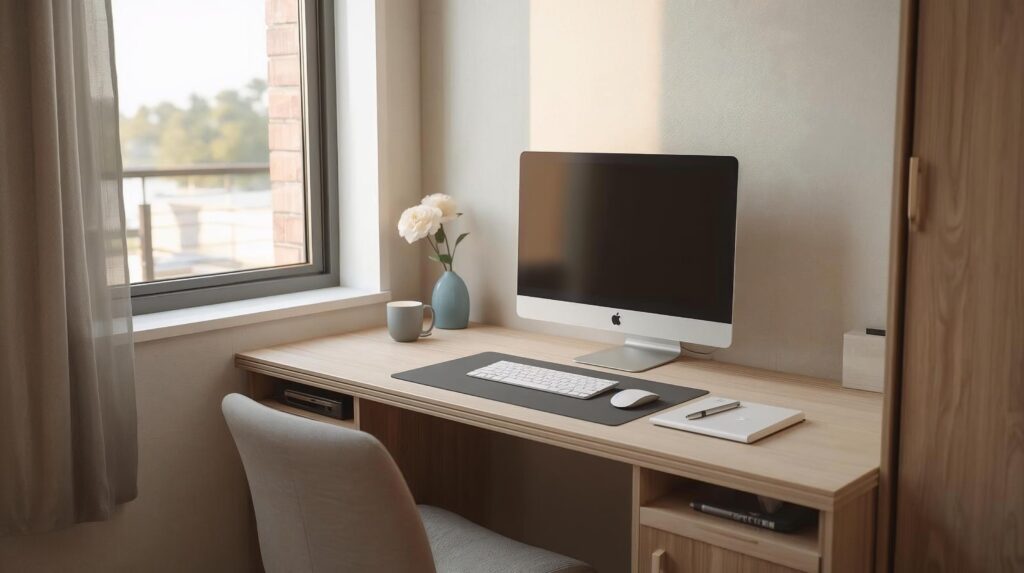
This home office setup guide is made for small rooms, shared spaces, and long desk hours on a laptop and monitor. A good home office setup is not about having a perfect room. It is about making your desk feel easy to use. Less strain. Less clutter. Less adjusting all day. This guide is physical only. Desk, chair, screens, lighting, and cables. It is made for a small room or shared space and a standard desk.
If your home office setup feels uncomfortable, start with chair height, screen height, and screen distance first.
| What to set | Simple rule | Why it helps |
|---|---|---|
| Chair height | Feet flat on the floor. Knees around hip height | Reduces thigh pressure and slouching |
| Main screen position | Main screen centered in front of you | Prevents neck twisting |
| Screen height | Top of screen at or slightly below eye level | Reduces neck bend |
| Screen distance | About 50 to 70 cm / 20 to 28 inches | Helps eyes and posture |
| Keyboard and mouse | Close enough that elbows stay near your body | Reduces shoulder and wrist strain |
Step 1: Choose the best spot in a small room or shared space
In a small room, your home office setup works better when the desk placement reduces glare and distractions.
Put the desk where focus is easier
If you can, face a wall or a calm area. In a shared room, facing a busy area can drain your attention without you noticing.
Use the window without glare
A simple rule that works most of the time.
Put your screen so it is perpendicular to the window.
If you see reflections on the screen, adjust the monitor angle or close the curtain a little. Try not to place the monitor directly in front of the window or directly with the window behind you.
Pick a spot with easy power access
In a small room, cables can take over quickly. Choose a spot where one outlet can serve your desk without crossing a walkway.
Step 2: Standard desk setup for small spaces
A small home office setup is easier to maintain when you keep clear desk zones and a simple layout.
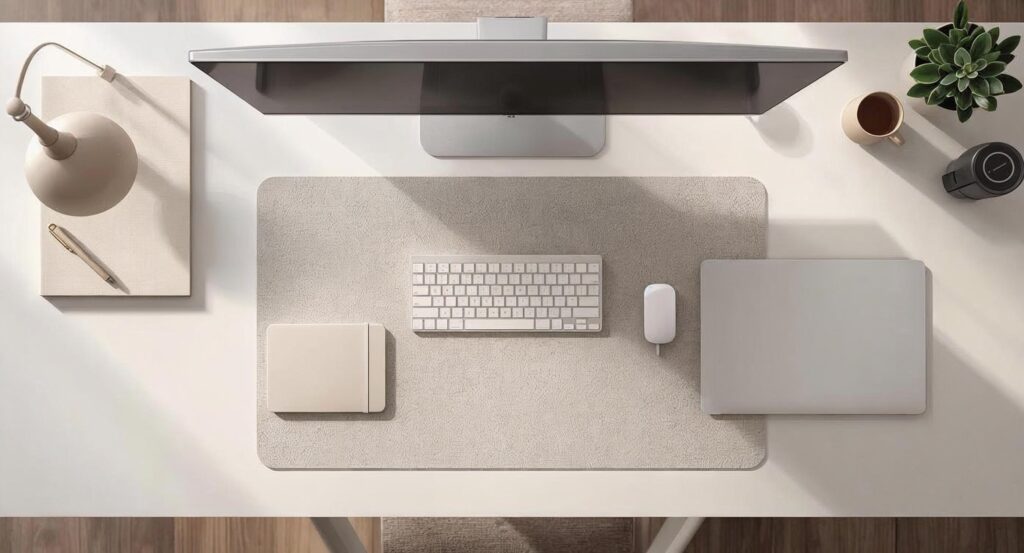
Desk depth matters more than desk width
For a laptop plus monitor setup, a desk depth around (60 to 75 cm / 24 to 30) inches is usually comfortable.
If your desk is shallower, you can still make it work. You just need to keep screens at the right distance and avoid pushing the keyboard too far back.
Use a simple desk zone layout
This helps you keep the desk clear and stops clutter from creeping into your work space.
If your desk feels cramped, a few small changes can make a big difference. Things like better screen positioning, cleaner cable routing, and small desk add-ons can free up space fast. See more ideas in our guide to desk accessories for small spaces ↗.
| Zone | Where it goes | What belongs there |
|---|---|---|
| Work zone | Center | Main screen, notebook, the thing you are working on |
| Input zone | Front center | Keyboard and mouse |
| Charging zone | One corner | Phone charger, earbuds, small charging cables |
Leave a bit of chair movement space
If your chair cannot slide back, you will sit on the edge of the seat. That usually turns into lower back pain. Even a small amount of space behind the chair helps.
Step 3: Home office ergonomics made simple
You do not need perfect posture. You need a setup that does not force you into bad positions.
Chair height and sitting position
Sit all the way back in the chair. Then check these basics.
- Feet flat on the floor or supported
- Knees around hip height
- Shoulders relaxed
- Elbows close to your sides
Basic back support on a standard chair
Most standard chairs do not support your lower back for long hours. If your lower back feels tired, place a small cushion or a rolled towel behind your lower back. Keep it small. You just want to fill the gap.
Elbow and shoulder rule
When your hands are on the keyboard, aim for elbows around 90 to 110 degrees. Shoulders should stay down, not lifted. If you feel your shoulders creeping up, your chair might be too high or the desk might be too high for you.
Wrist rule
Wrists should stay straight while typing and using the mouse. If your wrists bend up, your keyboard may be too high. If your wrists bend down, your chair may be too low or your keyboard may be too far away.
If you are using a basic chair and you sit for long hours, comfort usually comes down to support and adjustability. Even small upgrades like better back support and correct seat height can reduce fatigue. For deeper help, visit our ergonomic chairs for long hours ↗.
Step 4: Laptop and monitor setup
This is the most common home office setup for remote and hybrid work. It is also easy to set up wrong.
Pick the primary screen
Choose the screen you look at most. That is your primary screen. Your primary screen should be centered in front of you. The other screen supports it, not the other way around.
Screen height and distance rules
These are the simple rules that cover most people.
| Setting | Rule | Quick example |
|---|---|---|
| Height | Top of the main screen at or slightly below eye level | If you look down a lot, raise the screen |
| Distance | About 50 to 70 cm / 20 to 28 inches | If you lean forward to read, increase text size |
If text feels small, do not lean in. Increase text size and scaling. That is a common fix for neck and eye strain.
Two laptop plus monitor layouts that work on small desks
Layout 1: Monitor centered, laptop on the side
Use this if the monitor is your main screen. Keep the laptop slightly angled inward. Try not to use the laptop as your main screen if it sits far to the side.
Layout 2: Laptop raised, external keyboard and mouse
Use this if you need the laptop screen higher. Once the laptop is raised, typing on it usually becomes awkward. External keyboard and mouse solve that.
When you really need an external keyboard and mouse
If you raise the laptop screen, external keyboard and mouse are the clean fix. Without them, people often shrug their shoulders and bend their wrists.
Small dual monitors section
If you use two monitors, keep the setup simple so your neck stays calm.
Best layout
Put your primary monitor centered. Put the second monitor next to it and angle it slightly toward you.
Keep both screens similar
Try to keep both monitors at a similar height and distance. A good starting point is 50 to 70 cm / 20 to 28 inches.
Use the second screen for support
Put reference items on the second screen. Email, chat, notes, and dashboards work well there. Keep your main work on the centered screen.
Step 5: Cable management for small rooms
Cable management is not just about looks. It also prevents daily irritation and makes the space feel less crowded.
The one path cable rule
Route cables along the back edge of the desk, then down one side, then to one outlet. One path is easier to keep clean.
Under desk vs rear edge routing
If you cannot drill, that is fine. Rear edge routing with simple cable clips can still keep cables from hanging and pulling.
Power strip placement basics
Keep the power strip off the walking path, easy to reach, and not buried under fabric or piles. Adapters can get warm. They need airflow.
Make a charging corner
Pick one corner of the desk as the charging zone. This stops cables from spreading across the desk.
If cables keep creeping back onto the desk, it is usually because there is no clear path or “home” for them. A simple routing plan and a charging corner can keep things tidy without effort. For more cable and desk setup ideas, check our desk accessories hub ↗.
Step 6: Lighting for eye comfort
Lighting affects comfort more than most people expect.
Avoid glare
If possible, keep the screen perpendicular to the window. If glare shows up, change the angle of the screen or soften the light from the window.
Use task light plus some room light
A bright desk light in a dark room can feel harsh. A ceiling light alone can feel flat. A mix usually feels better.
Screen comfort basics
Match screen brightness to the room. Increase text size if you lean forward. If your eyes feel tired, glare and small text are often the first things to fix.
Step 7: Staying organized on a small desk
Small desks get messy fast because there is nowhere for clutter to hide.
Keep the main surface for work
If random items sit in the work zone, your keyboard and mouse drift forward. Then your posture gets worse.
Go vertical when you can
If you need storage, try to put it to the side or above the desk. Free desk depth is valuable in a small space.
Use a simple end of day reset
Put items back in their home. Clear cups and papers. Straighten charging cables. It takes a minute and keeps the setup usable.
Step 8: Upgrades that matter when you start with a standard chair
This section is still informational. No product picks. Just what usually gives the biggest comfort gains.
| Upgrade | When it matters most | What to look for in simple terms |
|---|---|---|
| Basic lumbar support | Lower back feels tired | Fills the gap behind your lower back |
| Screen height fix | You look down all day | Raises screen toward eye level |
| External keyboard and mouse | Laptop is raised or desk feels cramped | Lets hands stay low and relaxed |
| Better chair | You sit long hours daily | Adjustable height, better back support, stable seat |
A simple way to think about upgrades is this: fix the thing that causes pain first. Do not buy random accessories hoping they solve the problem.
Common mistakes that show up in small home office setups
| Mistake | What it causes | Simple fix |
|---|---|---|
| Laptop too low | Neck bend and upper back tension | Raise the screen and adjust input setup |
| Main screen off center | Neck twisting | Center the primary screen |
| Chair too high | Shoulders lift and neck tightness | Lower chair or add foot support |
| Window glare | Squinting and headaches | Rotate setup or soften window light |
| Cables across the room | Mess and safety issues | One cable path to one outlet |
Troubleshooting by symptom
If something hurts, start here.
| Problem | Likely cause | What to try first |
|---|---|---|
| Neck pain | Screen too low or off center | Raise screen, center primary screen |
| Lower back pain | No support, sitting on edge | Sit back, add small lumbar support |
| Wrist or forearm pain | Mouse too far, wrists bent | Bring mouse closer, keep wrists straight |
| Eye strain | Glare, small text, wrong brightness | Reduce glare, increase text size, match brightness |
If pain continues or is severe, I cannot confirm the cause from a guide alone. In that case it is worth talking to a medical professional or a qualified ergonomics specialist.
FAQ
What is the best home office setup for a small room
A small room home office setup works best when the primary screen is centered, the screen height is near eye level, and cables follow one clean path to one outlet. Keep the desk surface clear and use vertical storage when possible.
How far should my monitor be from my eyes
A common starting point is 50 to 70 cm / 20 to 28 inches. If you lean forward to read, increase text size instead of moving closer.
Should I use a laptop stand if I work long hours
Raising the laptop screen can help your neck. But once the laptop is raised, you usually need an external keyboard and mouse so your hands stay in a comfortable position.
How do I set up dual monitors without neck pain
Center your primary monitor. Angle the second monitor slightly inward. Keep both at a similar height and distance so your head stays mostly forward.
Sources
- OSHA computer workstations guidance ↗.
- Cornell University ergonomics resources ↗.